Importing Budget
How to Import a Budget
-
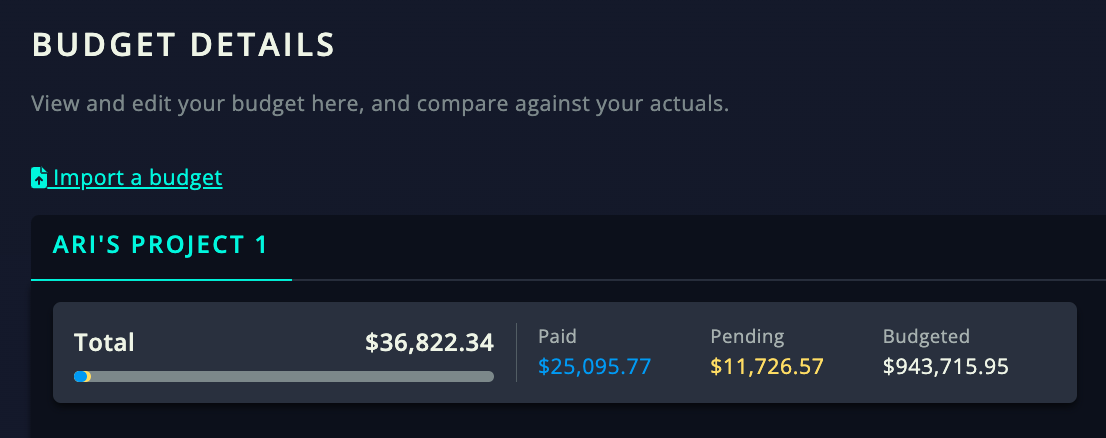
Go to the budget tab:
Go to the budget tab:
https://app.rollcredits.io/budget/details
-
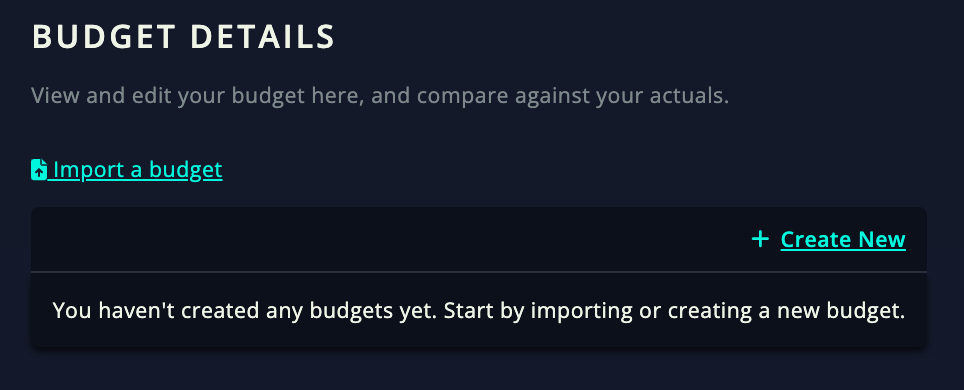
Click on “Import a Budget”
Click on “Import a Budget”
-
Use the dropdown menu to select your Budget Type & make sure that the file you’re uploading is an accepted format. Types of Budgets & Accepted File Formats:
Use the dropdown menu to select your Budget Type & make sure that the file you’re uploading is an accepted format. Types of Budgets & Accepted File Formats:
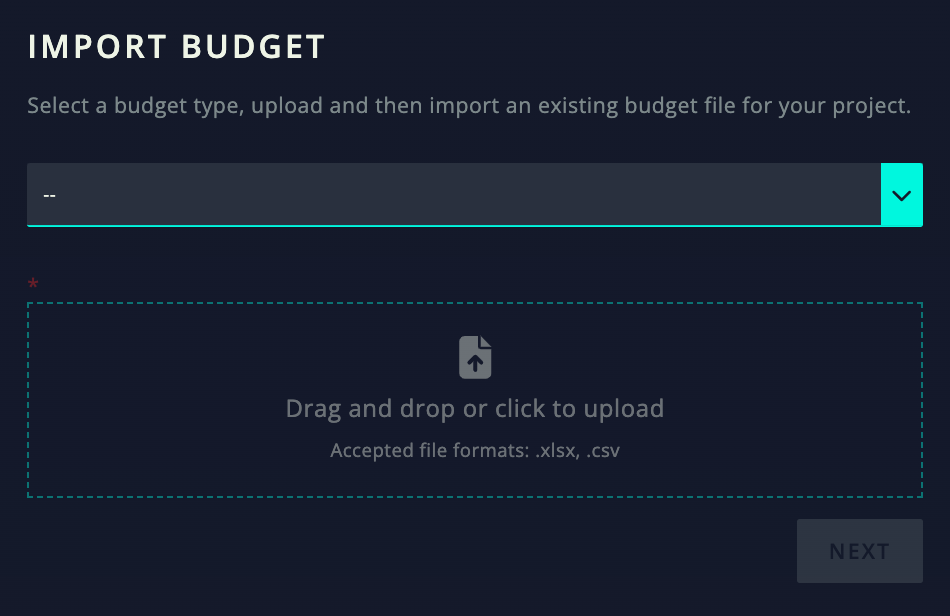
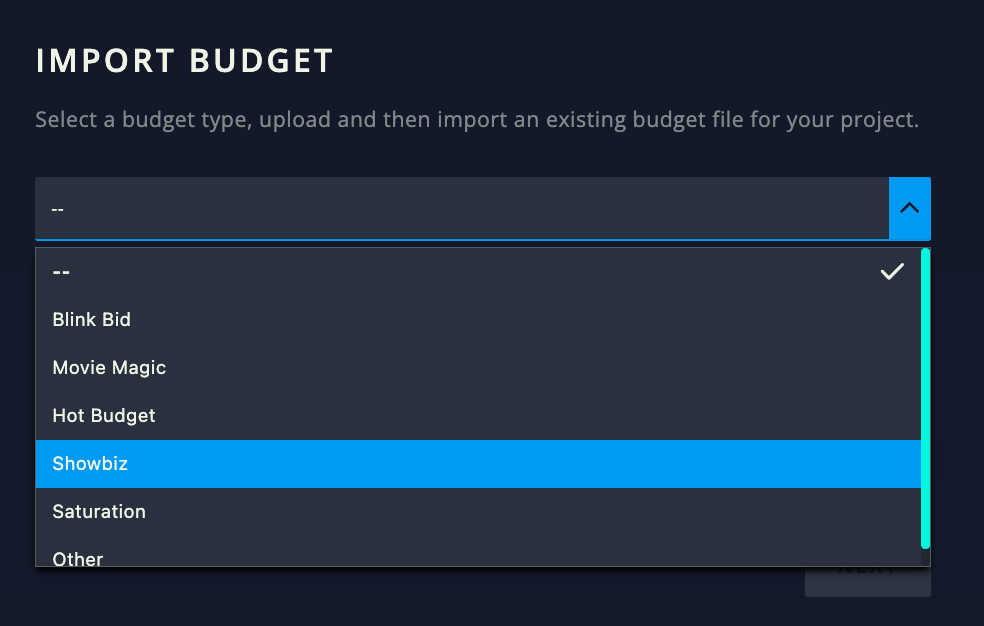
Here are our accepted file formats:
-
BlinkBid
-
Accepted file formats: .xlsx, .csv
-
-
Movie Magic
-
Accepted file formats: .xlsx, .csv
-
-
Hot Budget
-
Accepted file formats: .xlsb
-
-
Showbiz
-
Accepted file formats: .xlsx, .csv
-
-
Saturation
-
Accepted file formats: .json
-
-
Other
-
Accepted file formats: .xlsx, .csv
-
BlinkBid
Accepted file formats: .xlsx, .csv
Accepted file formats: .xlsx, .csv
Movie Magic
Accepted file formats: .xlsx, .csv
Accepted file formats: .xlsx, .csv
Hot Budget
Accepted file formats: .xlsb
Accepted file formats: .xlsb
Showbiz
Accepted file formats: .xlsx, .csv
Accepted file formats: .xlsx, .csv
Saturation
Accepted file formats: .json
Accepted file formats: .json
Other
Accepted file formats: .xlsx, .csv
Accepted file formats: .xlsx, .csv
____________________________________________________________________________
-
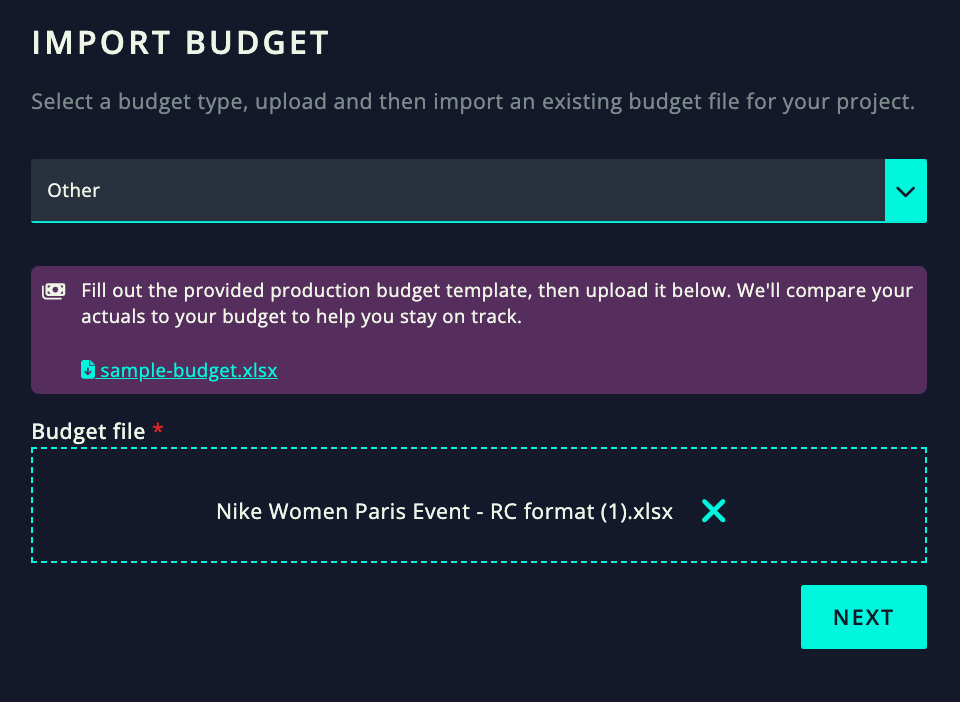
If you have a different budget and need to select “Other” - you can create it in a format that works for our system. Fill out the provided production budget template, then upload it below. We'll compare your actuals to your budget to help you stay on track.
If you have a different budget and need to select “Other” - you can create it in a format that works for our system. Fill out the provided production budget template, then upload it below. We'll compare your actuals to your budget to help you stay on track.
-
Here’s a link to use to download: sample-budget.xlsx
Here’s a link to use to download: sample-budget.xlsx
-
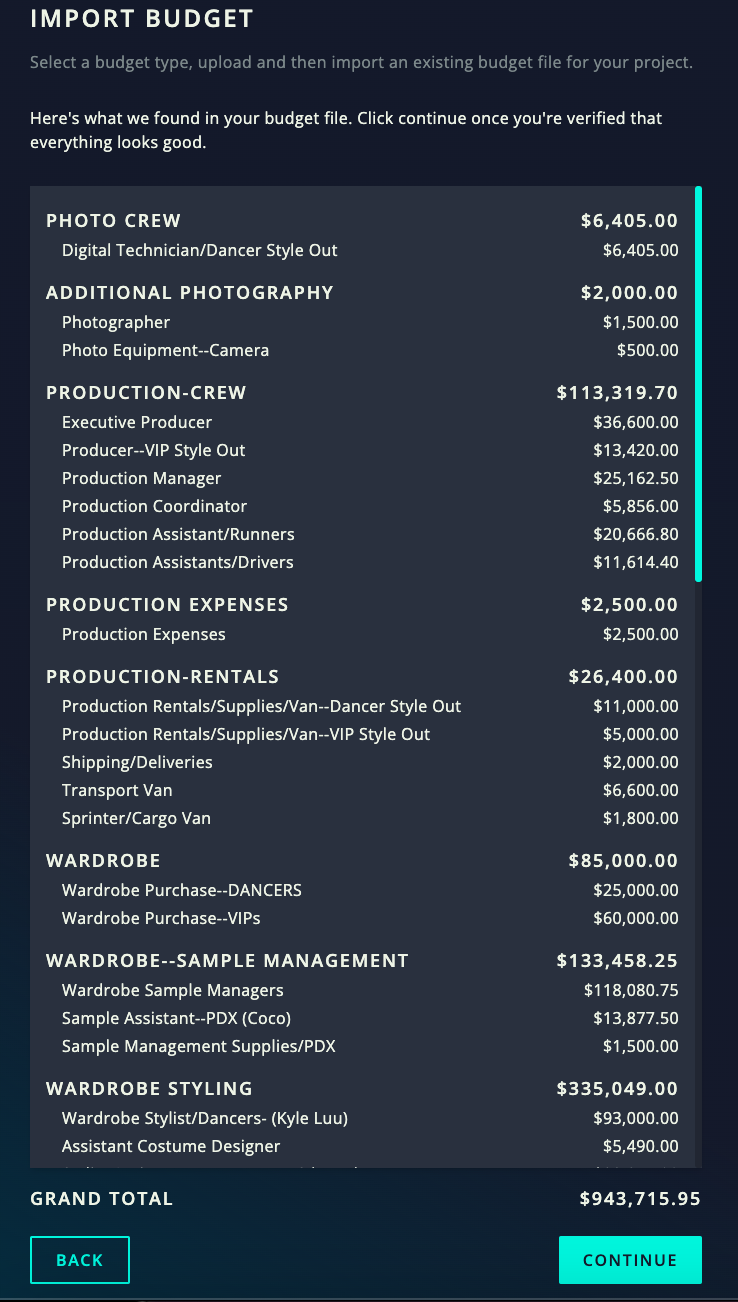
Your budget will upload and then you’ll be able to preview your budget. If everything checks out, click “Continue” on the bottom right.
Your budget will upload and then you’ll be able to preview your budget. If everything checks out, click “Continue” on the bottom right.
-
If you need help reformatting your budget, please contact us at help@rollcredits.io and we’ll be happy to help and upload for you!
If you need help reformatting your budget, please contact us at help@rollcredits.io and we’ll be happy to help and upload for you!
-
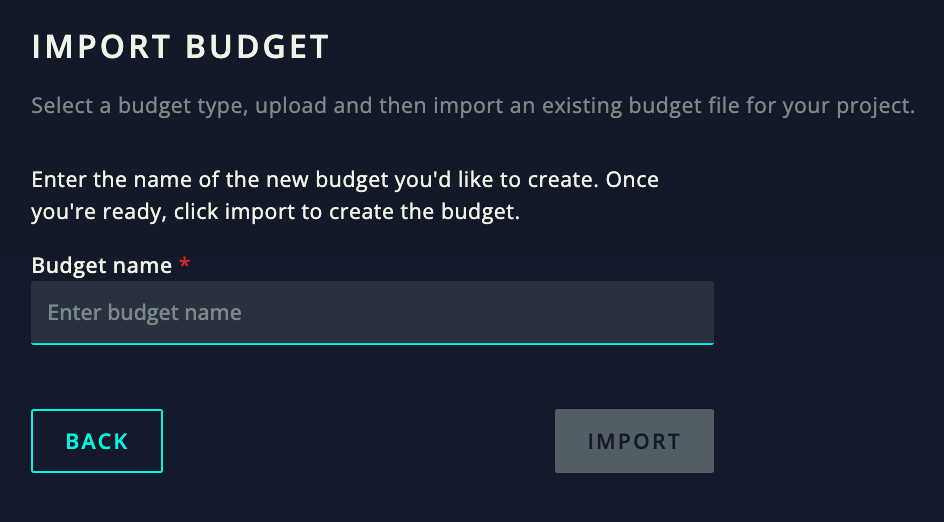
Name your Budget and then press “Import” to complete the budget import.
Name your Budget and then press “Import” to complete the budget import.
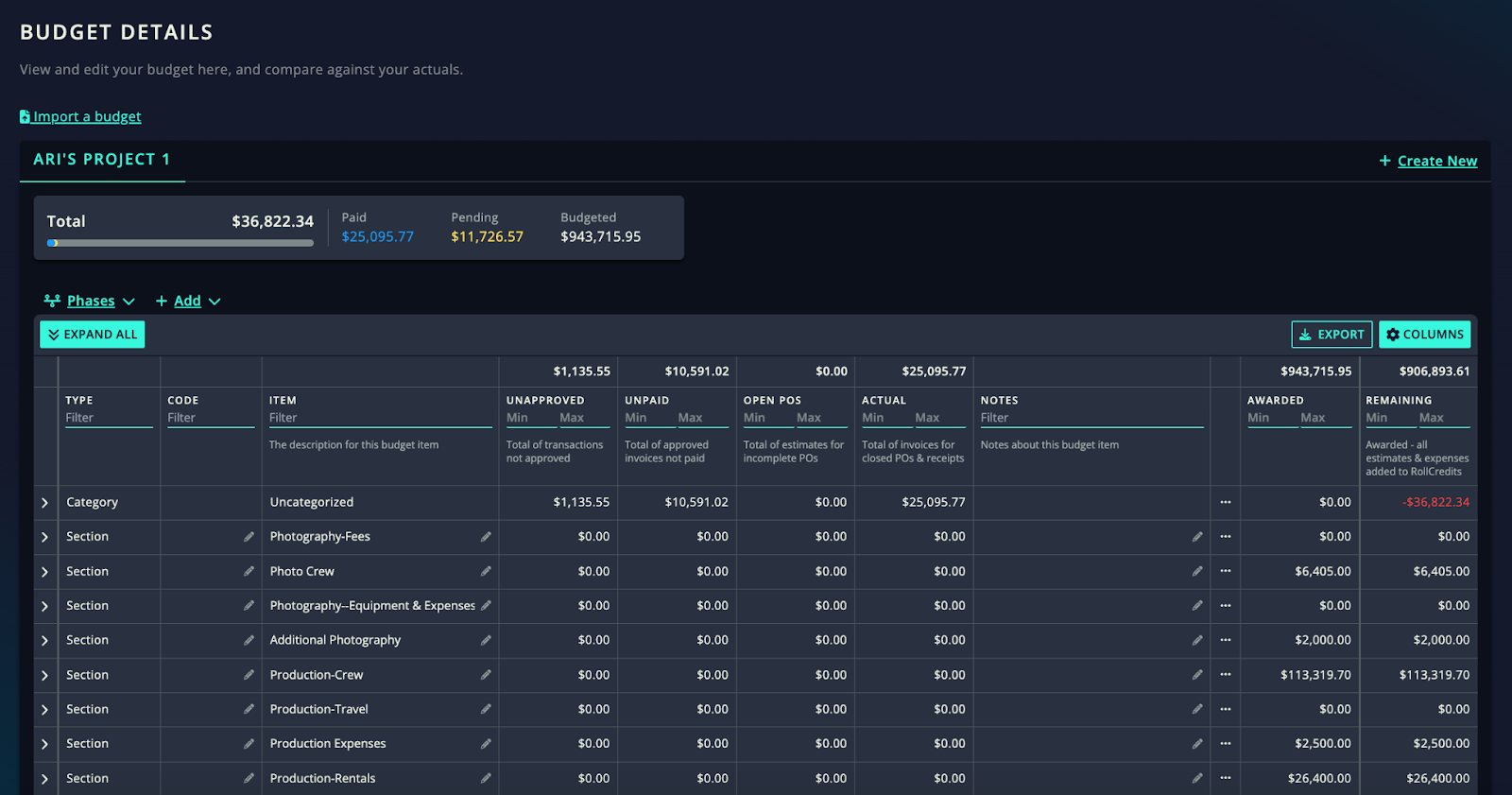
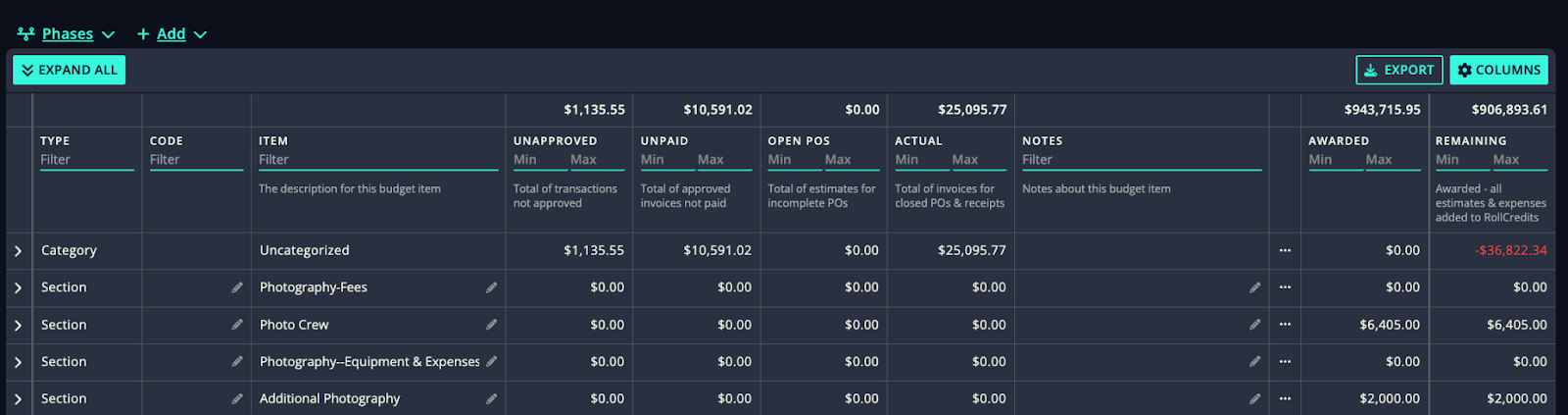
Here’s what a complete budget looks like!